
26 Jun 2026
Post by Dakota
Introduction
Is your iPhone refusing to recognize your lightning headphones? This common issue can disrupt your daily routine, but fear not! This article provides you with a straightforward explanation as well as solutions to fix the problem effectively. Whether it’s a software glitch or hardware concern, follow these steps to ensure your headphones and iPhone sync perfectly every time.

Understanding the Problem: Why Your iPhone Might Not Recognize Lightning Headphones
iPhones are renowned for their seamless connectivity, yet even these devices can encounter issues, particularly with accessories. When your iPhone doesn’t recognize lightning headphones, it can be due to several reasons.
First, the issue could be software-related, such as a bug in the iOS version currently installed on your iPhone. Alternatively, hardware issues can arise, such as debris in the lightning port or problems with the headphones themselves. Understanding these potential causes is key to addressing the issue efficiently.
Basic Troubleshooting Steps
When your iPhone fails to recognize lightning headphones, begin with these basic troubleshooting steps to hopefully resolve the issue promptly.
- Check for Software Updates:
- Go to ‘Settings’, tap on ‘General’, and select ‘Software Update’.
-
If an update is available, install it to ensure your device runs on the latest iOS version. Up-to-date software can often resolve connectivity issues.
-
Test with Alternate Headphones:
-
Connect a different pair of lightning headphones to your iPhone. This helps determine if the issue lies with the headphones or the phone itself.
-
Restart Your iPhone:
- Simply restart your device by holding down the power button until ‘slide to power off’ appears and then power it back on after a few seconds.
- This can refresh your phone’s system and resolve minor glitches.
Basic troubleshooting can often resolve the problem, but if the issue persists, consider the advanced solutions outlined below.
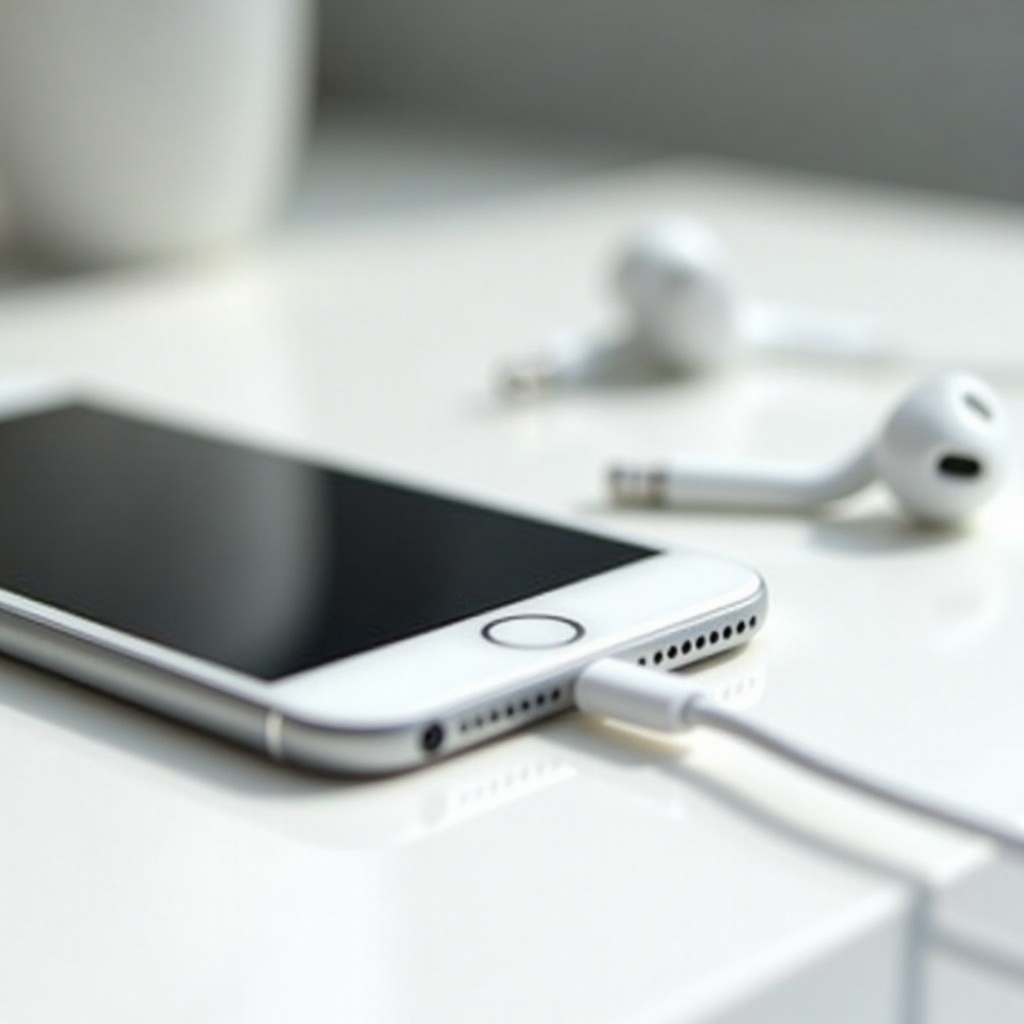
Advanced Fixes for Persistent Recognition Issues
Should the basic steps not rectify the issue, dive into these advanced fixes to tackle the problem head-on.
- Cleaning the Lightning Port:
- Power off your iPhone and inspect the lightning port.
-
Use a small, non-metallic tool, like a toothpick, to gently remove any dust or debris that could hinder connectivity.
-
Reset Network Settings:
- Navigate to ‘Settings’, tap ‘General’, select ‘Transfer or Reset iPhone’, and then ‘Reset Network Settings’.
-
Note that this will erase all network-related settings, but it can effectively solve connectivity issues.
-
Update or Roll Back iOS:
- If the problem started after a recent update, a bug might be the culprit.
- Consider rolling back to a previous stable version if possible, or checking for a subsequent update that addresses known issues.
These advanced techniques target more stubborn problems and can often resolve issues where basic steps fail.
When to Contact Apple Support
If none of the aforementioned steps yield results, it might be time to contact Apple Support. Persistent issues could indicate deeper hardware or software malfunctions that professional technicians should handle. When contacting support:
- Explain all troubleshooting steps attempted.
- Provide details on any error messages or unusual behaviors noted during tests.
Seeking expert assistance ensures your device receives the necessary care and mitigates the risk of exacerbating the issue.
Preventing Future Issues with Lightning Headphones
Preventing future connectivity issues is just as crucial as resolving current ones. Here’s how you can maintain your device and accessories:
- Proper Maintenance of Accessories:
- Regularly clean both the headphones and the lightning port.
-
Use only Apple-certified accessories to ensure compatibility and durability.
-
Regular Software Updates:
- Set your iPhone to update automatically to have the latest features and fixes.
- Keeping your device up-to-date minimizes the risk of software-related connectivity issues.
By practicing regular maintenance and updates, you can extend the longevity of your device and its accessories, preventing future connectivity disruptions.
Conclusion
With the solutions provided, you can often resolve the issue of your iPhone not recognizing lightning headphones. By understanding the problem and following both basic and advanced troubleshooting steps, your device should reconnect seamlessly. Remember, if issues persist, don’t hesitate to seek assistance from Apple Support to ensure your phone receives professional care.
Frequently Asked Questions
Why is my iPhone showing ‘Accessory Not Supported’?
This message usually appears if there is a compatibility issue with the accessory or if there is a problem with the connector or device port. Try using certified accessories and check the port for debris.
Can a software bug cause my iPhone to not recognize headphones?
Yes, software bugs in certain iOS versions can affect device performance, including headphone recognition. Keeping your iOS updated is advisable to avoid such issues.
How can I check if my headphones are the issue?
Test the headphones on another device. If they still do not work, they might be defective. Additionally, try using another set of headphones with your iPhone to see if the issue persists with a different accessory.
0 Comments