
17 Jul 2026
Post by Dakota
Introduction
Accessing Amazon Prime Video on your iPad is an essential way to make the most of your streaming subscription. Whether you’re catching up on shows during a trip or relaxing at home, the iPad becomes your perfect entertainment partner. This guide walks you through the steps to get Prime on your iPad, helping you unlock a world of endless entertainment options wherever you are.

Preparing Your iPad for Prime Video
Before accessing Prime, ensure your iPad is ready to handle the app properly. This step is essential to avoid any installation hiccups and to enhance your experience.
- Check for iOS Updates: Open ‘Settings’ > ‘General’ > ‘Software Update’ and ensure your software is current. Updated iOS versions improve security and app compatibility.
- Ensure Ample Storage Space: Go to ‘Settings’ > ‘General’ > ‘iPad Storage’. Clear unnecessary apps or files to ensure your device has enough space, facilitating smooth app functioning.
Proper preparation leads to a seamless download and setup of Prime Video, readying you for an enjoyable streaming experience.
Downloading the Amazon Prime Video App
Once your iPad is set, downloading the Prime Video app is the next logical step.
- Access the App Store: Tap on the App Store icon on your iPad.
- Search and Download: Type ‘Prime Video’ in the search bar and locate the official app. Tap ‘Get’ to download.
With the app downloaded, you are a step closer to enjoying Prime Video’s extensive library. Launch the app from your home screen and proceed to setup.
Setting Up Your Amazon Prime Account
Having the app downloaded, the next phase involves setting up your account to access your Prime membership benefits.
- Sign In or Create an Account: Open the app, tap ‘Sign In’, and enter your Amazon credentials. If new to Amazon, follow the prompts to create an account.
- Verify and Link Your Membership: Post sign-in, ensure your Prime membership is linked correctly by following the prompts. This confirmation guarantees unrestricted access to all Amazon content.
With your account set, you can now effortlessly explore everything that Prime Video has to offer directly from your iPad.
Navigating the Prime Video App
With setup complete, diving into the app’s functionality will enable you to take full advantage of its features.
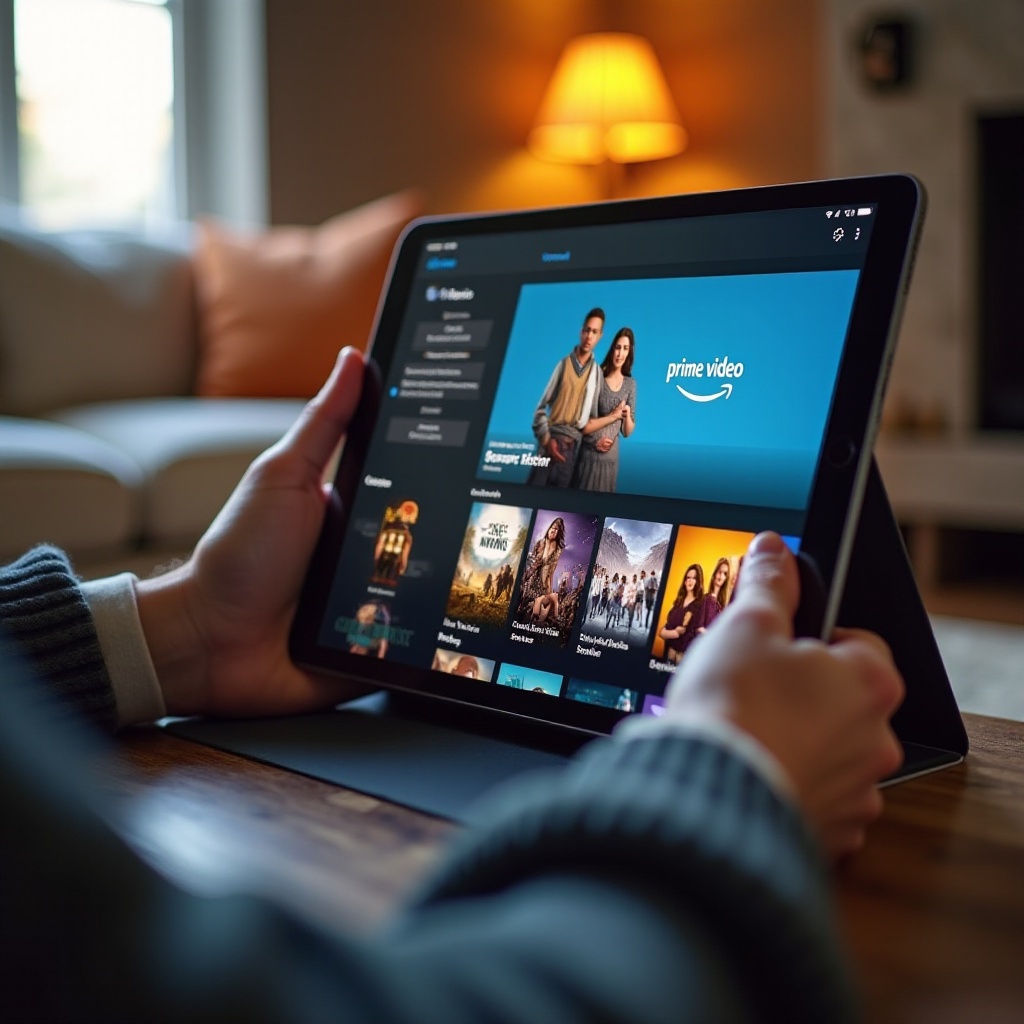
- Exploring the Interface: Familiarize yourself with the user-friendly layout. The home screen showcases personalized recommendations, while the menu provides access to your library and settings.
- Browsing Content and Categories: Search and browse through assorted genres such as movies, TV shows, and Amazon Originals. Utilize the search function to quickly find specific titles or actors.
Successful navigation of the app makes it easy and enjoyable to find new content and manage your streaming experience efficiently.
Optimizing Your Viewing Experience
To maximize your enjoyment of Prime Video, customize the settings to your liking.
- Adjusting Video Quality: Under ‘Stream & Download’, choose streaming quality that matches your internet capabilities. This is essential for data management and ensuring smooth playback.
- Utilizing AirPlay and Connectivity Options: Employ AirPlay to stream content to bigger screens, such as compatible TVs or devices, depending on your preference.
Tailoring these settings enhances the quality of your viewing experience, ensuring the best possible encounter with Prime Video on your iPad.
Troubleshooting Common Issues
Occasionally, you may encounter issues that need resolving to maintain smooth streaming.
- Installation Problems: In case of installation failure, verify your internet connection and restart your device if necessary.
- Playback Issues: Should buffering occur, check your internet speed and try reconnecting to a stronger network or rebooting your router for better connectivity.
Resolving these common issues ensures that you enjoy uninterrupted streaming on your device.
Conclusion
You’ve now taken every necessary step to enjoy Amazon Prime Video on your iPad. By following this guide, you have set yourself up to explore a wide array of entertainment options anywhere you go. Dive into your favorite shows and movies and make the most of the flexibility and convenience that streaming on your iPad offers.
Frequently Asked Questions
How do I update the Prime Video app on my iPad?
Ensure your iPad is connected to Wi-Fi, open the App Store, navigate to ‘Updates’, and tap ‘Update’ next to Prime Video if available.
Can I download Prime Video shows for offline viewing on iPad?
Yes, select content can be downloaded for offline viewing by tapping the download icon next to eligible videos in the app.
What do I do if Prime Video won’t stream on my iPad?
Check your internet connection, restart your router if needed, and ensure that your Prime Video app and iOS are updated to the latest versions.

0 Comments