
29 May 2026
Post by Dakota
Introduction
Backing up your iPhone ensures your data is always safe, regardless of what happens to your device. While cloud storage is popular for this purpose, using a thumb drive for backup provides an added layer of security and control over your data. In this comprehensive guide, we’ll explore how you can efficiently back up your iPhone to a thumb drive.

Preparing Your Devices
Before you begin the backup process, ensure you have all the necessary equipment. You’ll need:
- Your iPhone.
- A thumb drive with enough storage capacity to hold all your data.
- A computer (either Mac or PC) that you can use to facilitate the backup process.
- Necessary connection cables, such as a Lightning-to-USB or Lightning-to-USB-C.
After gathering your equipment, check your iPhone to ensure it’s running the latest iOS version. This helps prevent compatibility issues and ensures you have the latest security updates. Also, verify there is enough storage space available on both your iPhone and thumb drive for the backup.
Backup Methods
With your preparation complete, let’s delve into the different methods available for backing up your iPhone to a thumb drive. Each method offers unique benefits depending on your equipment and preferences.
Using a Computer for Backup
- Connect your iPhone to your computer with the appropriate cable.
- For Mac users, open Finder, and for PC users, open iTunes.
- Select your iPhone from the device list.
- Click ‘Back Up Now’ to create a local backup on your computer.
- Once the backup is complete, plug your thumb drive into the computer.
- Locate the backup file (typically found in Finder under Locations for Mac users or in C:\Users[username]\AppData\Roaming\Apple Computer\MobileSync\Backup\ for PC users) and copy it to your thumb drive.
This method is straightforward and utilizes software already available on your computer.
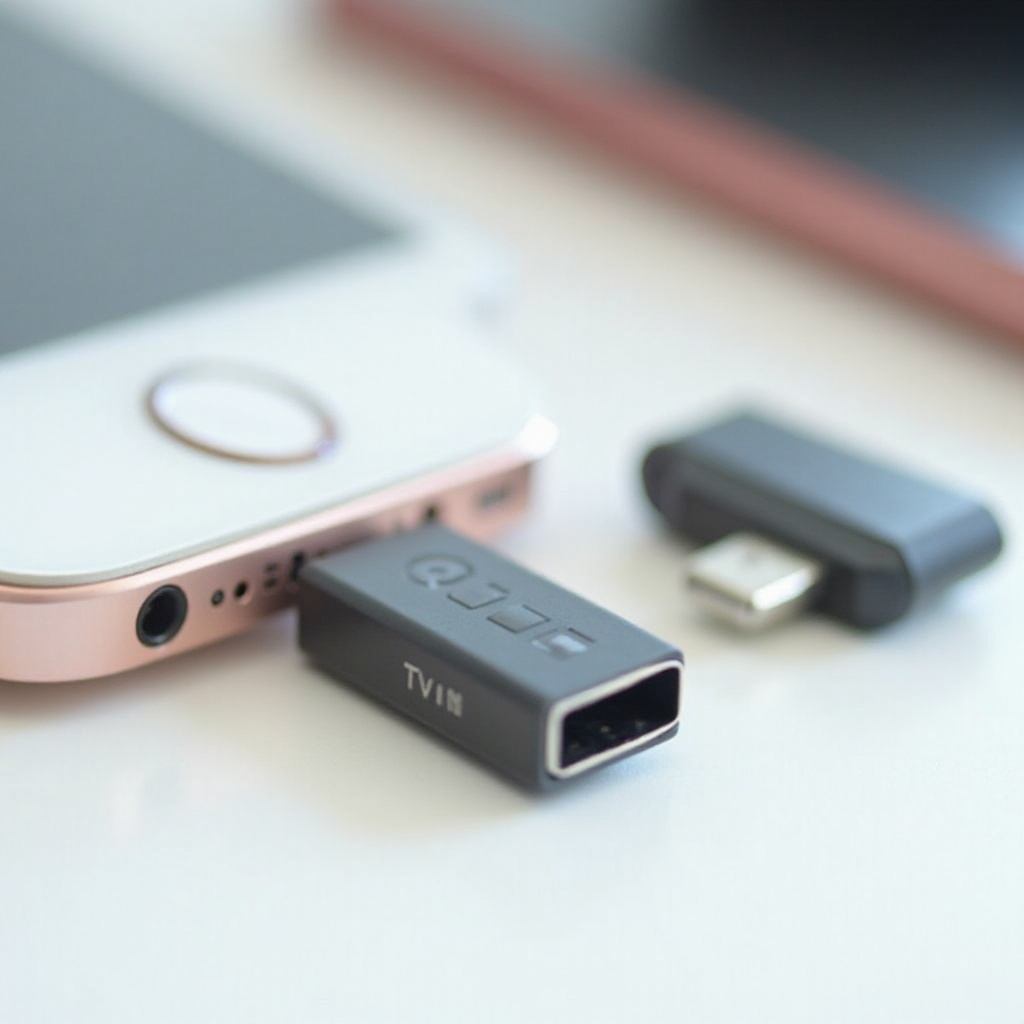
Direct Backup with a USB Adapter
If you prefer not using a computer, direct backup via a USB adapter is a viable alternative. Follow these steps:
- Purchase a Lightning-to-USB or Lightning-to-USB-C adapter compatible with your iPhone.
- Connect your iPhone to the thumb drive using the adapter.
- Download a file management app like ‘FileApp’ or ‘Sandisk iXpand’ from the App Store.
- Use the app to transfer files directly from your iPhone to the thumb drive.
This approach eases the transfer process but may require additional apps for effective file management.
Third-Party Applications
There are several third-party applications designed to simplify the backup process:
- iMazing: Offers a user-friendly interface and allows flexible backup options, including direct transfers to thumb drives.
- Dr. Fone: Provides a comprehensive suite of backup and recovery options, supporting transfers to external storage like thumb drives.
- Syncios: A cost-effective solution known for simple, efficient backups to thumb drives.
Choose the app that best aligns with your needs and follow its guidance to transfer data efficiently.
Best Practices and Troubleshooting
While backing up, it’s wise to follow best practices to secure your data effectively. Consider encrypting your backups to safeguard sensitive information. Regular updates to your iOS and apps ensure compatibility and improve security.
Encountering issues is not uncommon, but most can be addressed swiftly:
- If your computer doesn’t recognize the iPhone, try another USB port or a different cable.
- Ensure sufficient storage is available on your thumb drive, addressing any ‘full storage’ errors by either clearing space or using a larger drive.
If technical challenges persist, exploring resources on the Apple Support page or contacting their support team may provide additional solutions.
Conclusion
Backing up your iPhone to a thumb drive is a secure, reliable method for safeguarding your personal data. By following the steps outlined in this guide, you can ensure your data remains protected and easily accessible. Regular backups are recommended as part of a robust data management strategy.
Frequently Asked Questions
Can I backup my iPhone directly to a thumb drive without a computer?
Yes, by using a Lightning-to-USB adapter and a file management app, you can transfer data directly from your iPhone to a thumb drive.
What are the best third-party apps for iPhone backup?
iMazing, Dr. Fone, and Syncios are popular third-party options that provide efficient solutions for backing up iPhone data to thumb drives.
How often should I backup my iPhone?
Regular backups are advisable. Consider scheduling backups weekly or bi-weekly to ensure data protection.


0 Comments