
21 Aug 2026
Post by Dakota
Introduction
Navigating your iPhone without a physical home button can feel unfamiliar, especially if you’re used to older devices. Apple’s sleek designs come with gesture-based navigation, offering a streamlined experience that might take some time to adjust. However, for those who miss the tactile simplicity of a home button, AssistiveTouch provides a handy alternative. This guide will help you seamlessly set up a virtual home button to enhance your navigation.
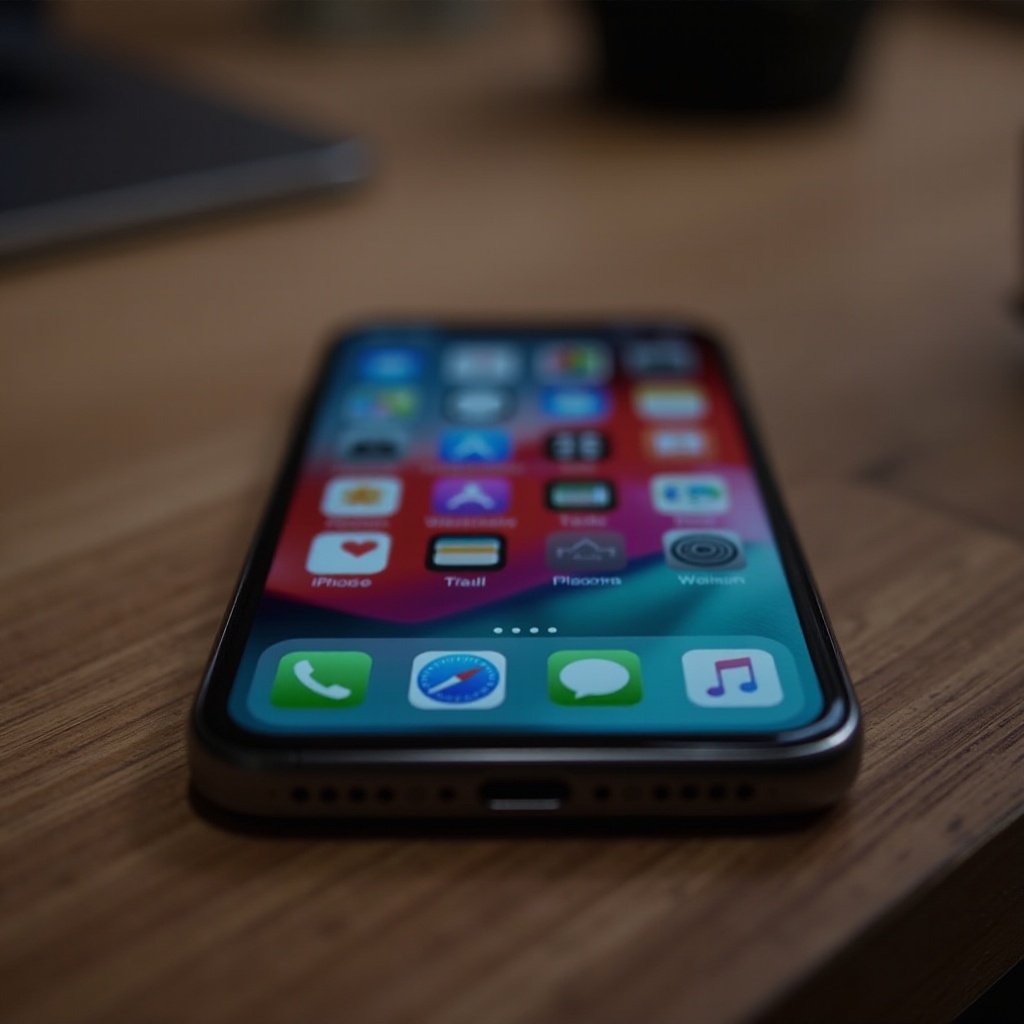
Understanding the iPhone Interface
The removal of the physical home button in newer iPhone models highlights the evolution of Apple’s interface design. With the iPhone X, Apple introduced a fresh approach to navigation through gestures, maximizing screen space and user interaction. However, transitioning to gestures can be challenging if you’re more accustomed to traditional controls. Embracing the available features and understanding this transition is crucial for fully optimizing your iPhone experience.
Setting Up AssistiveTouch as a Virtual Home Button
To restore the familiar function of a home button, iPhone offers AssistiveTouch, which allows for customized navigation tailored to your needs. Here’s how to set it up:
- Enable AssistiveTouch:
- Open ‘Settings’ on your iPhone.
- Select ‘Accessibility,’ then tap on ‘Touch.
-
Choose ‘AssistiveTouch’ and toggle it ‘On.
-
Customize the AssistiveTouch Menu:
- Within the AssistiveTouch settings, tap ‘Customize Top Level Menu.
- Add or remove shortcuts by tapping the ‘+’ or ‘-‘ symbols based on your preferences.
-
Assign specific functions to each option, including ‘Home,’ ‘Screenshot,’ or ‘Notification Center.
-
Optimize the Button’s Position and Use:
- Drag the on-screen button to any edge of your display for easy access.
- Test out its functions and adjust settings to suit your needs.
Personalizing Your Home Screen Experience
With your virtual home button in place, personalizing your home screen further enhances usability. A thoughtfully organized screen not only looks good but also improves efficiency. Let’s explore some ways to achieve this:
- Arrange Apps and Widgets:
- Long-press an app icon until it jiggles, then drag it to your desired position.
-
Swipe right from the home screen to add widgets that keep important info at your fingertips.
-
Create Folders and Shortcuts:
- Organize similar apps together by dropping one app onto another to create a folder.
-
Use Apple’s Shortcuts app to automate frequent tasks and create easy access points on your home screen.
-
Customize the Control Center:
- Navigate to ‘Settings,’ select ‘Control Center,’ and tap ‘Customize Controls.
- Add or remove tools for quick access to frequently used features.
Enhancing Accessibility and Usability
As you familiarize yourself with your iPhone’s features, exploring additional accessibility settings can further simplify your user experience. Apple’s commitment to accessibility ensures that your device remains functional and inclusive.
- Utilize Voice Control:
- Activate it by going to ‘Settings,’ ‘Accessibility,’ and selecting ‘Voice Control.
-
Harness voice commands for tasks like launching apps or adjusting volume, giving you hands-free capability.
-
Explore Other Accessibility Features:
- Check out features like ‘Zoom,’ ‘Display & Text Size,’ and more under the accessibility settings.
- Customize these to meet specific needs, enhancing your device’s accessibility and functionality.
Troubleshooting Common Issues with Home Screen Setup
Occasionally, you might encounter issues with your home screen setup. Understanding potential challenges and knowing how to resolve them ensures a hassle-free experience. If you face issues, here’s what you can do:
- Solve Frequent Problems:
- If your virtual button is not responding, try restarting your device.
-
Ensure your iOS is up to date to prevent compatibility issues.
-
Reset Settings When Needed:
- Go to ‘Settings,’ ‘General,’ ‘Reset,’ and choose ‘Reset All Settings.’ Remember, this won’t delete your data but will reset settings.
Conclusion
Configuring a virtual home screen button on your iPhone through AssistiveTouch seamlessly blends the old with the new, offering an experience that caters to both traditional and new users. By understanding how to personalize your device’s navigation, you can create a setup that’s uniquely yours, ensuring intuitive and efficient use.
Frequently Asked Questions
How does AssistiveTouch help with iPhone navigation?
AssistiveTouch creates a virtual button, offering a customizable way to navigate your iPhone like a physical button.
Can I revert to a physical home button on newer iPhones?
Newer iPhones don’t support physical home buttons but offer AssistiveTouch for a similar interactive experience.
What are the advantages of using a virtual home button?
A virtual home button provides accessible navigation, especially for those who prefer traditional methods without compromising device design.

0 Comments